Status Channel Dashboard
Within the System Dashboard, you can view various information on current update statuses, ranging from pending, installed, and failed updates, as well as failure reasons for specific update attempts.
OS Updates Chart
This section shows you the statuses of certain OS updates on each device. You can click on the OS version to see which devices are reporting which status.
- Prepared: The device prepared the software update, and it’s ready for installation. This doesn't inherently mean that the update is enforced via Addigy, but rather, it just means the update is downloaded and ready to be applied whenever the device is told to do so.
- Installed: The device is running the specified version.
- Failed: The software update encountered an error somewhere in the update process. This error can happen at any step of the update process, such as downloading/preparing or applying the version.
OS Updates Failure List
If you notice there are a lot of failures in the OS Updates chart, it's good to review the failure list to see why certain updates are not working. These errors and their codes/wording come directly from the device itself and are not edited by Addigy in any capacity.
The generalized description of the errors is selectable and will give a listing of devices encountering that error, as well as the number of times the status channel has returned that. It will also list the error code that the OS is informing the status channel: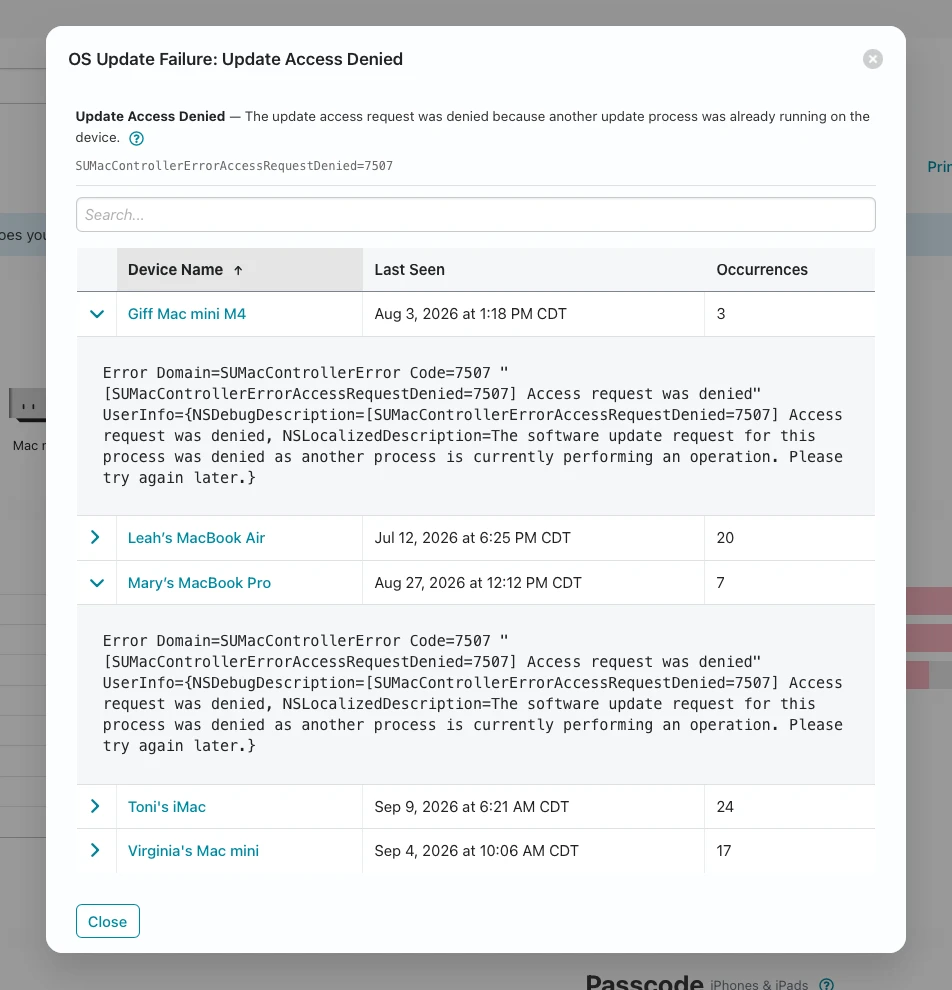
Some of these errors are quite vague and/or misleading, and we are actively working toward compiling a list of error meanings and any remediation steps. This will be published in a separate article, which will be linked here at a later date.
Update Statuses via GoLive
GoLive > Updates Page
For devices running OS 26+, you will be able to see the current update status (if any), available updates, and a history of updates installed by the device (including updates installed outside of Addigy).
Depending on whether you have updates configured in one of the device's assigned policies, a certain banner will be displayed.
For devices that do not have OS updates configured in the policy, you will see this in the GoLive > Updates tab.
For devices with OS updates configured in an assigned policy, this banner will be shown.
Within the Update Status section, you will see the following information. These statuses are generated by the device itself.
- Update Available: What version the information is relevant to.
-
Source: Where the update originated from.
- Addigy - sent by Addigy.
- User - initiated by the User or via an automatic download/update.
-
Method: How the update is enforced
- Declarative Management: Sent via DDM Declaration.
- Settings: Manually via the Settings app.
- Auto Update: Installing automatically through System Settings > Software Update's automatic updates setting.
- Setup Assistant: During initial setup.
- Install Tonight: Scheduled for overnight.
- Notification: Started from an update alert.
- Command Line: Via the softwareupdate tool.
- Last Update: When the device itself reported this information.
-
Status: What the current status is for this version.
- Prepared: The device prepared the software update, and it’s ready for installation. This doesn't inherently mean that the update is enforced via Addigy, but rather, it just means the update is downloaded and ready to be applied whenever the device is told to do so.
- Downloading: The device is currently downloading the specified version.
- Failed: The software update encountered an error somewhere in the update process. This error can happen at any step of the update process, such as downloading/preparing or applying the version.
Pending Update Window
When a device reports an update through the status channel, Addigy will show what the device reports via the Pending Update window, and you can get more details by clicking on the OS version.
This will not only report managed updates - it will also report updates initiated via automatic downloads or by the user. You can see where the update is coming from based on the Source and Method, and a full breakdown can be seen by clicking Show More...
This is an example of what will show when you have updates enforced via deadline:
For updates managed via on-device AI, Apple does not distinguish in the status channel what is enforced via the Automatic Actions OS Update setting; thus, those updates may appear as User for the Source, like so:
Additionally, updates that appear in this manner do not inherently mean that this update will happen. The device could have just downloaded it, but will not automatically install until the user initiates that. More info on this here.
Viewing Events
You can filter events in a device's GoLive > Events page, or the Dashboard > Events page by setting the filters like so:
- Filter: Any
- Is: =
- Value: Addigy DDM
or
- Filter: Any
- Is: =
- Value: Addigy Declarative
Addigy DDM:
Updates via Deadline:
This shows the theoretical enforcement date, which is calculated purely based on what settings are in the policy, not what the device is actually getting. For example, if we send a max of 26.5.2 to enforce after 1 day at 12pm, that will report 26.5.2 @ 2026-06-29 12:00:00. However, if we apply those settings on July 7th at 9 am, Addigy Declarative will report it as 26.5.2 @ 2026-07-02 12:00:00.
Updates via Device AI:
Addigy DDM will also report whenever there are update settings applied beyond updates via deadline, like so:
Addigy Declarative:
This only reports the enforcement date that Addigy fetched from the policy and will apply via the Addigy DDM service. This service will not report information on any other update settings, such as settings via Device AI. This is the most useful service if you are sending enforcement declarations.