If a device locked via MDM Lock is displaying an extremely long countdown timer — such as "Try again in 27529547 minutes" — this is caused by the device's system clock reverting to January 1, 1970 (Unix Epoch 0) after the battery fully drained. This article walks through how to resolve it.
Note: This issue only affects the MDM Lock screen. It is not related to Managed Activation Lock.
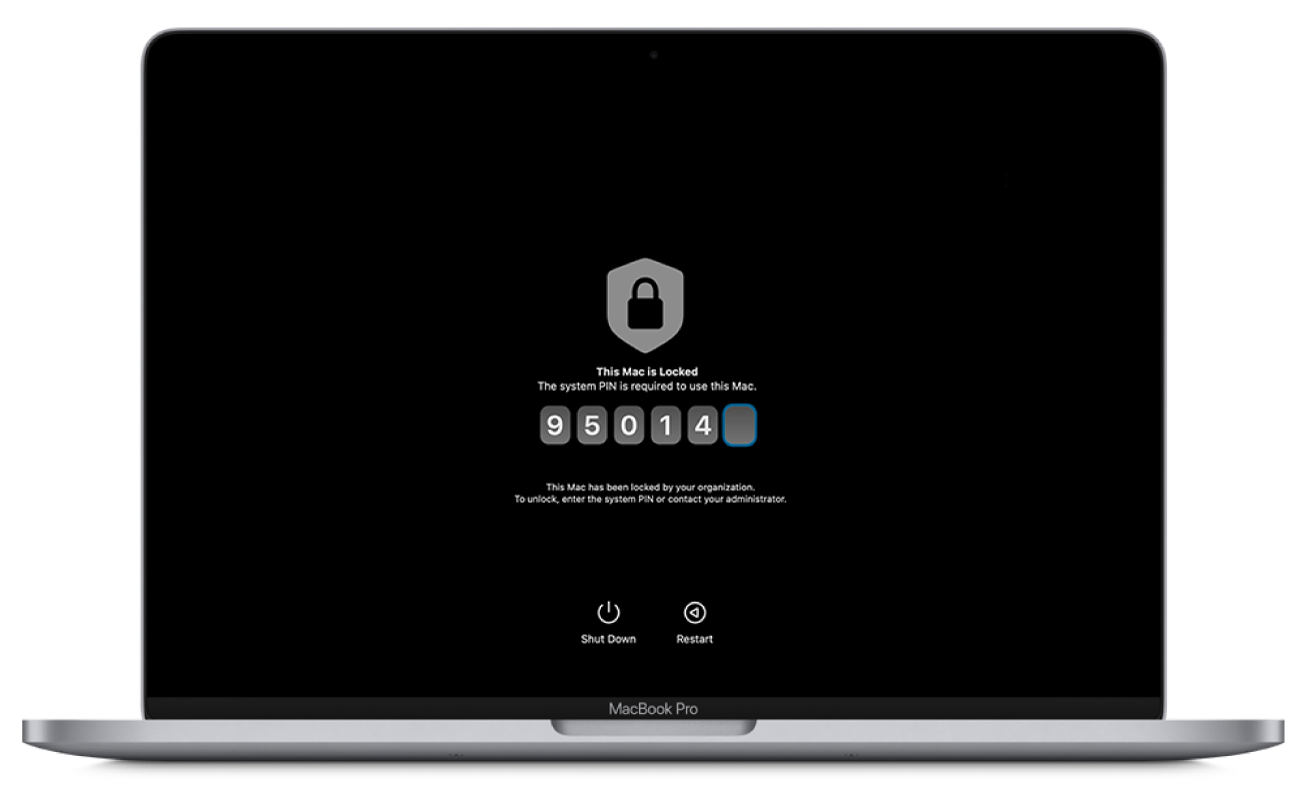
Why This Happens
When a Mac completely runs out of battery, the system clock can reset to its default fallback date of January 1, 1970. Because the MDM Lock timer is calculated against the system clock, the device interprets the difference between 1970 and today as an astronomical number of minutes — hence the inflated countdown.
How to Resolve
Option 1: Connect via Ethernet (Recommended)
Connecting the device to a network allows the system clock to sync with Apple's time servers and correct itself automatically.
- Connect the device to a network using an Ethernet cable.
- Wait for the system clock to sync and update to the correct time.
- Restart the device if the lockout timer does not clear on its own.
Once the system clock is corrected, the MDM Lock timer should resolve and the device can be unlocked normally using the PIN.
Option 2: DFU the Device
If connecting via Ethernet does not resolve the issue, you may need to perform a DFU (Device Firmware Update) using Apple Configurator.
Note: A Revive will not erase any user data. A Restore will erase the device. Start with a Revive before attempting a Restore.
For full DFU instructions, refer to Apple's guide on reviving or restoring a Mac with Apple Configurator.
Option 3: Contact Apple Support
If neither option above resolves the issue, contact Apple Support or schedule an appointment at a nearby Genius Bar for further assistance.