Addigy currently supports all available methods to restrict Apple Intelligence settings on macOS and iOS/iPadOS. All payloads/profiles can be configured by going to Catalog > Device Settings > New.
More info on Declarative Configurations and Settings here:
Device Settings - Declaration Configuration Object Deployment
Declarative Management Device Settings
In 26.4, Apple has added additional settings spread throughout various payloads that can further restrict new Intelligence features. If you have devices below 26.4, you will need to configure and deploy the settings covered in the Restrictions MDM Profile section.
Intelligence Settings (OS 26.4+)
This is really the meat and potatoes of Apple Intelligence on devices. This payload controls most of the important settings, including app-specific Intelligence settings in Mail, Safari, and Notes.
External Intelligence (OS 26.4+)
As the name implies, this payload controls whether external integrations can be linked with Apple Intelligence.
Keyboard Settings (OS 26.4+)
Apple has some Intelligence features in the keyboard itself, and all of these can be found in the Keyboard Settings payload. Not every setting in here is related to Apple Intelligence, only the ones shown as disabled in the screenshot below:
Siri Settings (OS 26.4+)
Disabling the highlighted settings will ensure Talk to Siri is disabled and cannot be controlled. If you want to allow this, you can restrict certain capabilities with the other available settings.
Math Notes (OS 26.0+)
This payload controls things related to the Calculator, as well as suggestions in the keyboard app.
Restrictions MDM Profile
When Apple first implemented their Intelligence features, they opted to place the major settings within the Restrictions MDM profile.
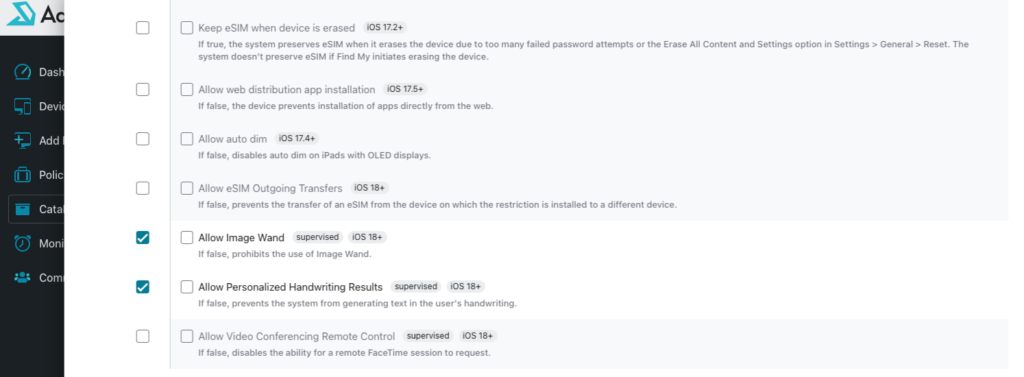
To configure this, choose the Restrictions option in the list of device settings. Then, disable the settings shown below. Be sure to note the OS tag and only configure those that apply to the device types you are managing.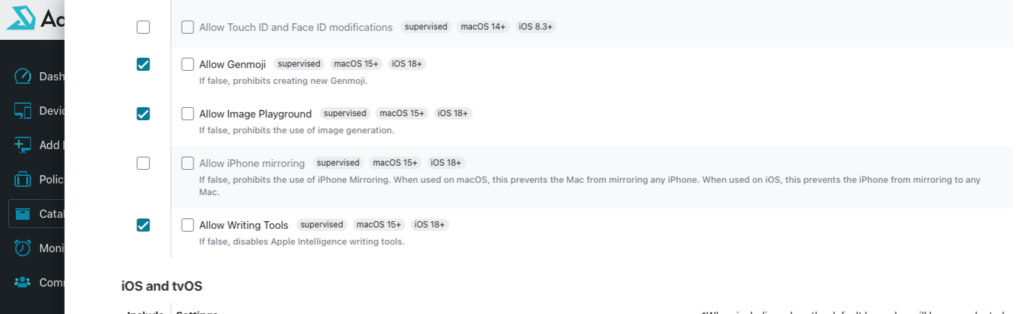
Automated Device Enrollment (ADE) Setup Screen
If you are enrolling devices via ADE, you can disable the screen that asks to enable certain Apple Intelligence features.
To do so, navigate to the policy that houses your ADE configuration > Select Integrations & Settings > Automated Device Enrollment.
Next, expand the End-User Setup Assistant Experience section, and ensure the highlighted option is enabled.
Login Window MDM Profile
If a new user account on a Mac is logging in for the first time, they will see a screen that offers the user the option to enable Apple Intelligence features.
To disable this, begin creating a Login Window profile. Then, select the Options tab, and scroll down until you see Skip Setup Items. Configure it as shown in the following screenshot: